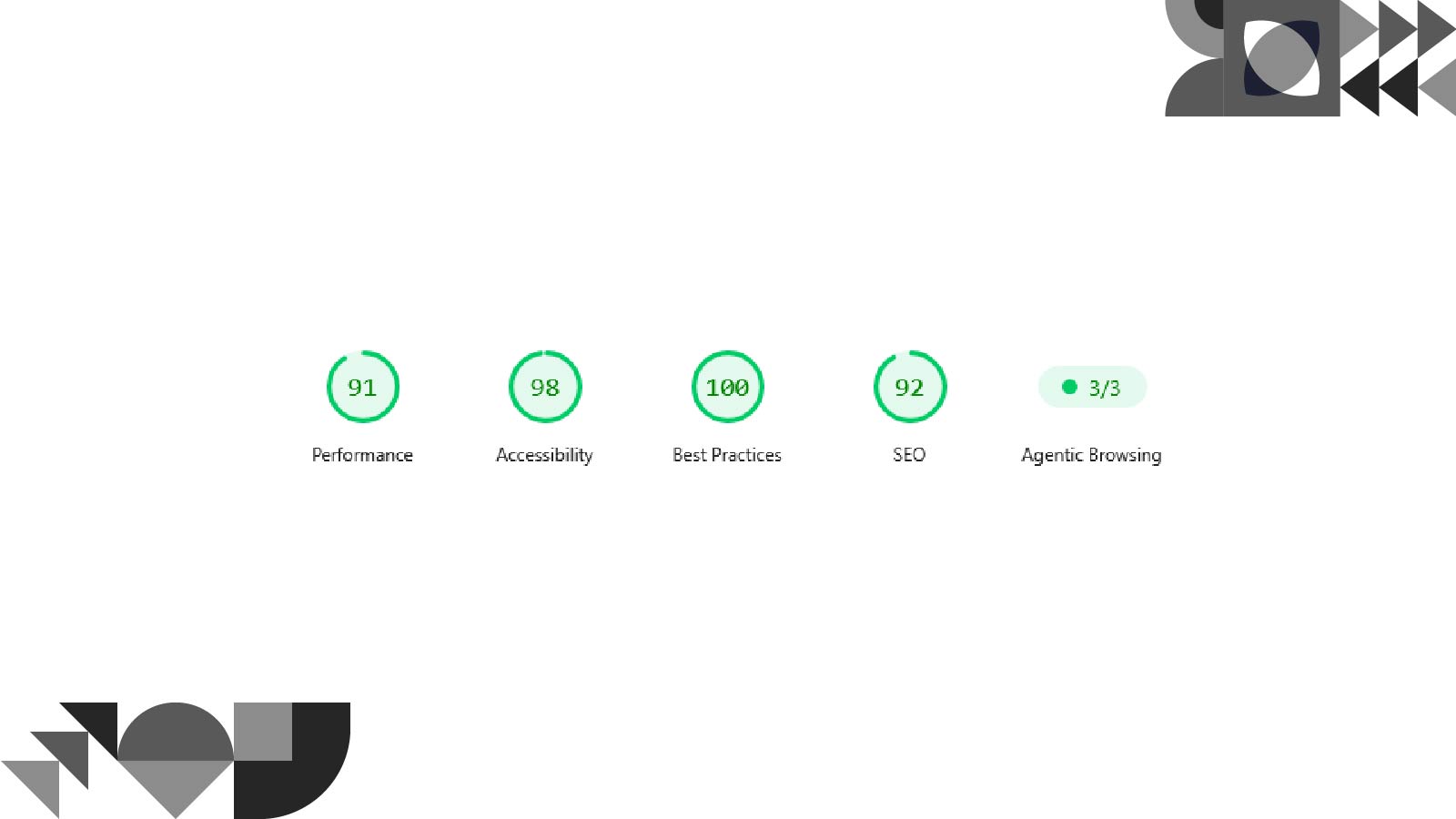
When I first tested my WordPress website using Google PageSpeed Insights, I was disappointed.
The score hovered around 50, pages felt sluggish, and I knew visitors weren’t getting the experience they deserved. A slow website doesn’t just frustrate users, it also affects search engine rankings, conversions, and credibility.
After experimenting with countless WordPress PageSpeed optimization techniques, I eventually increased my website’s PageSpeed score to 90+, while keeping my monthly costs surprisingly low.
The best part?
I didn’t purchase expensive optimization services or enterprise hosting.
Instead, I built a simple, affordable tech stack that almost anyone can implement with a little patience.
In this guide, I’ll show you exactly what I changed, dividing everything into two categories:
If you’re a small business owner with little technical knowledge, don’t worry. I’ll explain everything in plain English.
Before talking about optimization, it’s important to understand why website speed matters.
A faster website can help:
Think of your website like a physical shop.
If customers have to wait 10 seconds just for the door to open, many will simply leave.
Your website works exactly the same way.
Before optimization:
After optimization:
Most of the improvement actually came from changing the infrastructure & not endlessly installing optimization plugins.
This was the single biggest improvement.
Many small businesses purchase the cheapest shared hosting they can find.
While it’s inexpensive, you’re sharing server resources with hundreds or even thousands of other websites.
Imagine renting a tiny food stall inside a crowded market.
Every time your neighbours get busy, your customers have to wait too.
That’s essentially how shared hosting works.
Instead, I moved my website to a Virtual Private Server (VPS).
A VPS gives your website dedicated resources.
This means:
The difference was immediately noticeable.
I personally use RackNerd.
The surprising part?
Many people assume VPS hosting is expensive.
It isn’t.
RackNerd frequently runs promotional sales throughout the year, and some of their VPS plans are actually cheaper than premium shared hosting plans.
For small business websites, this offers incredible value.
You don’t need an expensive enterprise server.
Even an entry-level VPS is often enough for a business website.
This is probably the biggest misconception.
Years ago, setting up a VPS required Linux knowledge.
Today, it’s much easier thanks to server management panels.
Which brings us to the software side.
The hardware gives you the foundation.
The software unlocks its full potential.
My entire stack is surprisingly simple.
I installed AlmaLinux on the VPS.
Why?
Because it’s:
Most importantly…
Once it’s installed, you rarely need to think about it again.
It simply runs quietly in the background.
This is where things become really easy.
I installed OLSPanel.
It handles most of the complicated server configuration for you.
Instead of typing complicated Linux commands, you can manage your server through a user-friendly dashboard.
Even beginners can learn it fairly quickly.
There were several reasons.
One of the biggest advantages is that OLSPanel runs on LiteSpeed, one of the fastest web servers available for WordPress.
Compared to traditional Apache servers, LiteSpeed is generally faster at serving pages and handling multiple visitors.
Installing WordPress only takes a few clicks.
No complicated server commands.
No advanced Linux experience.
Many performance features are already integrated, making optimization much easier later.
If you’re worried about setting everything up…
Don’t be.
There are plenty of step-by-step YouTube tutorials showing exactly how to install:
You can simply follow along.
That’s exactly how many beginners learn today.
Once the server was running efficiently, I focused on optimizing WordPress itself.
Notice something important:
I didn’t install dozens of “speed optimization” plugins.
In fact, adding too many plugins can actually slow your website down.
Instead, I followed a simple philosophy.
Every plugin adds extra code.
Ask yourself:
Do I really need this plugin?
If the answer is no…
Remove it.
A cleaner website is almost always a faster website.
Large images are one of the biggest causes of slow websites.
Before uploading images:
Visitors usually can’t tell the difference in quality, but they’ll definitely notice a faster website.
Caching allows your website to save pre-built versions of pages.
Instead of rebuilding every page for every visitor, WordPress simply serves the saved version.
This dramatically reduces loading time.
LiteSpeed works particularly well with caching, making it one of the easiest performance wins.
Websites contain many CSS and JavaScript files.
These files often include unnecessary spaces and formatting.
Minifying removes the extra characters without changing functionality.
The result?
Smaller files that load faster.
Many websites become slow because of external services.
Examples include:
Every external service adds loading time.
Only keep the ones that genuinely benefit your business.
Many people chase a higher PageSpeed score by installing plugin after plugin.
Ironically…
That’s often what slows the website down.
I discovered that performance starts with the foundation, not the plugins.
Think of it like building a house.
You don’t decorate the walls before pouring a solid foundation.
The same applies to WordPress.
A fast server combined with a lightweight website will outperform an overloaded shared hosting account almost every time.
If I were starting over today, I’d use exactly this setup again.
It’s simple.
Affordable.
Reliable.
And most importantly…
It works.
Improving your WordPress PageSpeed score isn’t about chasing a perfect 100.
It’s about creating a website that loads quickly for real people.
My journey from 50 to 90+ wasn’t achieved through expensive software or complicated engineering.
It came from making smarter decisions:
Most of these improvements are inexpensive, beginner-friendly, and can have a significant impact on your website’s performance.
If your business relies on its website to attract customers, improving speed is one of the highest-return investments you can make.
Building a high-performing WordPress website isn’t just about installing a few plugins, it’s about choosing the right hosting, configuring the server properly, and designing a site that balances speed, usability, and SEO.
If you’d rather skip the trial and error, I can help. I design fast, SEO-friendly WordPress websites that are built for performance from the ground up, helping businesses create a better first impression and convert more visitors into customers.
Whether you’re launching a new website or improving an existing one, investing in a professionally built website can save you time and deliver better long-term results.
This site is protected by reCAPTCHA and Google Privacy Policy and Terms of Service apply